Policies define some options (for example, the down/up data rate, the session time, logoff time for inactivity, etc.) shared for all products they are associated with; they facilitate their creation, updating, and management.
By clicking the properties button, the context dropdown menu will appear with a set of options grouped by edit.
To add a new policy, select the data tab, press the context properties button of the level you need to add the policy (“ System“, “ The Resellers” or “ The Managers level). Select “Product policies” and press “Add” on the command bar. While, to modify an existing policy, press the context button of the policy and select “Edit”. In both cases, a page appears that allows you to manage the contents of the following fields:
|
Field |
Description |
|
ID |
ID of the record. Auto-assigned Identifier of the record. It can be used to use the API or external integrations. It is displayed during the editing phase of existing data and not during the insertion of a new record. |
|
Code |
Identification code of the policy. |
|
Description |
Description of the policy. |
|
Session Timeout |
Time (in minutes) of a user’s session. After this time, the user will be disconnected even when credit is still available. To continue to suft, login credentials must be re-entered. |
|
Timeout for Idle |
Time (in minutes) of automatically logging out for idle users. If users during this period do not carry any internet data allowance will automatically be disconnected. It is useful, especially with a product with time credit to prevent users from using the credit even when they are not using the connection. |
|
Download Data Rate |
Maximum data rate in bits for the download. Users who purchase a product associated with the policy will have the maximum data rate of download defined in this field. |
|
Upload Data Rate |
Maximum data rate in bits for the upload. Users who purchase a product associated with the policy will have the maximum data rate of upload defined in this field. |
|
Interim Update |
Time, in seconds, that defines the interval for the automatic updating of the connection information (session duration, bytes sent/received, etc.). It is important to use this value if, with the same user, multiple devices can connect and to ensure that the system can determine disconnected users even if the gateway has not sent the disconnection (STOP packet). The minimum definable time is 300 seconds. Lower values will be automatically converted to 300. This attribute is not supported by all types of gateways. |
|
Field |
Description |
|
Daily Time |
Daily maximum time in minutes of the connection. If set, the guests who purchase the product associated with the policy will have daily access to the internet for the maximum time defined in this field. After consuming the time, they will be disconnected and fail to connect until the following day. A zero value indicates an infinite time. Daily time can also be defined on the product, and if it is present on both sides, it will consider the one specified in the Policy. Not considered for “free” users automatically generated on domains with “Click & connect” and “Simple password” authentication modes. |
|
Weekly Time |
Weekly maximum time in minutes of the connection. If set, the guests that purchase the product associated with the policy, will have weekly access to the internet for the maximum time defined in this field. After the consumption of the time, they will be disconnected and will fail to connect until the following week. A zero value indicates an infinite time. Weekly time can also be defined on the product, and if it is present on both sides, it will consider the one specified in the Policy. Not considered for “free” users automatically generated on domains with “Click & connect” and “Simple password” authentication modes. |
|
Monthly Time |
Monthly maximum time in minutes of the connection. If set, the guests that purchase the product associated with the policy will have monthly access to the internet for the maximum time defined in this field. After consuming the time, they will be disconnected and will fail to connect until the following month. A zero value indicates an infinite time. Monthly time can also be defined on the product, and if it is present on both sides, it will consider the one specified in the Policy. Not considered for “free” users automatically generated on domains with “Click & connect” and “Simple password” authentication modes. |
|
Daily Data Allowance |
Megabytes of daily data allowance of the connection. If set, the guests that purchase the product associated with the policy will have daily access to the internet for the maximum data allowance in Megabytes defined in this field. After consuming the data, they will be disconnected and will fail to connect until the following day. A zero value indicates an infinite data allowance. Daily data allowance can also be defined on the product, and if it is present on both sides, it will consider the one specified in the Policy. Not considered for “free” users automatically generated on domains with “Click & connect” and “Simple password” authentication modes. Warning! Cisco WLC, Cisco Meraki, CloudTrax, Ruckus Access Point, Ruckus Zone director, Ruckus VSCG, Ruckus VSZ and Ubiquiti UniFi Controller/Dream Machine types of hardware do not support automatic user disconnection upon reaching the defined traffic limit. Network Station can handle the disconnection if the gateways are reachable and in the configuration of the same, “Send Disconnection Requests to the Gateway” has been activated. |
|
Weekly Data Allowance |
Megabytes of weekly data allowance of the connection. If set, the guests that purchase the product associated with the policy will have weekly access to the internet for the maximum data allowance in Megabytes defined in this field. After consuming the data, they will be disconnected and will fail to connect until the following week. A zero value indicates an infinite data allowance. Weekly data allowance can also be defined on the product, and if it is present on both sides, it will consider the one specified in the Policy. Not considered for “free” users automatically generated on domains with “Click & connect” and “Simple password” authentication modes. Warning! Cisco WLC, Cisco Meraki, CloudTrax, Ruckus Access Point, Ruckus Zone director, Ruckus VSCG, Ruckus VSZ and Ubiquiti UniFi Controller/Dream Machine hardware types do not support automatic user disconnection upon reaching the defined traffic limit. Network Station can handle the disconnection if the gateways are reachable and in the configuration of the same, “Send Disconnection Requests to the Gateway” has been activated |
|
Monthly Data Allowance |
Megabytes of monthly data allowance of the connection. If set, the guests that purchase the product associated with the policy will have monthly access to the internet for the maximum data allowance in Megabytes defined in this field. After the data consumption, they will be disconnected and fail to connect until the following month. A zero value indicates an infinite data allowance. Monthly data allowance can also be defined on the product, and if it is present on both sides, it will consider the one specified in the Policy. Not considered for “free” users automatically generated on domains with “Click & connect” and “Simple password” authentication mode. Warning! Cisco WLC, Cisco Meraki, CloudTrax, Ruckus Access Point, Ruckus Zone director, Ruckus VSCG, Ruckus VSZ and Ubiquiti UniFi Controller/Dream Machine hardware types do not support automatic user disconnection upon reaching the defined traffic limit. Network Station can handle the disconnection if the gateways are reachable and in the configuration of the same, “Send Disconnection Requests to the Gateway” has been activated. |
|
First Day of the Week |
State what the first day of the week is. Possible values are:
It is used to define the period of calculation of consumption for the weekly limits. |
|
Field |
Description |
|
Maximum number of devices |
Maximum number of devices that can be connected with the same credentials. A zero value defines an unlimited number of devices. The count of devices already registered is made from the date of assignment/purchase of the product. In practice, if the user had been assigned a product whose policy defined a maximum of two devices and had actually used two devices if he subsequently purchases another product, the count of the number of devices is reset. Warning! The number of concurrent connections cannot exceed the maximum number of devices. |
|
Concurrent Connections |
Number of concurrent connections that can be made by the same user. In practice, if a user purchases a product associated with a certain policy, the latter can connect simultaneously with that user for the maximum number defined in this field. Normally, for paid products, it is equal to 1 and is increased according to the maximum number of concurrent users you want to support on domains with the “Authentication Mode” “Without registration”. It is also useful, for example, to make different commercial offers to managers who intend to have a free/free gateway. Example: gateway with a maximum of 5 simultaneous connections a price; gateway with a maximum of 10 simultaneous connections another price; etc. |
|
Split Credits Between Concurrent Connections |
If activated, the time and traffic credits will be divided by the maximum number of concurrent connections. For example, if the ‘remaining balance’ of data is 3GB and you set up a maximum of 3 concurrent connections, each session can develop up to 1GB of data. Upon disconnection, the total remaining balance will be recalculated and the new sessions will not be able to develop data greater than the remaining balance divided by the maximum number of concurrent connections. It prevents credit limits from being exceeded when multiple connections are allowed. |
|
Minimum Time |
If the guests have time limits, define the minimum time expressed in minutes to assign to the guests when the credit is divided by the maximum number of concurrent connections. Warning! A low value reduces the chance that guests will exceed the assigned time and will force them to make more connections to consume all the time allowance. The minimum value is 5 minutes. |
|
Minimum Data |
If the guests have data limits, define the minimum traffic expressed in megabytes to assign to the guests when the credit is divided by the maximum number of concurrent connections. Warning! A low value reduces the chance that guests will exceed the assigned data and will force them to make more connections to consume all the data allowance. The minimum value is 10 megabytes. |
Through the parameters in this section, you can define the weekly activation times of the product policy. Users will be able to log in only on active days and hours.
Timetables depend on the timezone defined for the gateway.
|
Field |
Description |
|
Sunday, Monday, Tuesday, Wednesday, Thursday, Friday and Saturday |
It defines the weekly times at which the users can log in. |
Fields specific to Mikrotik RouterOS
Manageable fields are:
|
Field |
Description |
|
Mikrotik Address List |
If defined, it adds the IP address that will be assigned to users within the Address-List of the Mikrotik gateway. Useful if you have to enter some firewall rules by Address-List (i.e. IP groups) into the gateway and/or to make traffic prioritization always by Address-List. You can also define it in the products. The value entered at the policy level has priority. |
Burst is a functionality device-specific based on MikroTik RouterOS that can satisfy requests with data rates higher than defined in the maximum data rate for a limited time.
Manageable fields are:
|
Field |
Description |
|
Download Burst Limit |
Maximum burst data rate reachable in download |
|
Upload Burst Limit |
Maximum burst data rate reachable in upload |
|
Download Threshold |
The average data rate of download in the burst time. If the average in the period of time is less than the indicated value, it activates the burst. |
|
Upload Threshold |
The average data rate of upload in the burst time. If the average in the period of time is less than the indicated value, it activates the burst. |
|
Download Bust Time |
Defines the period of time in seconds on which to calculate the average (Threshold) of traffic in download |
|
Upload Burst Time |
Defines the period of time in seconds on which to calculate the average (Threshold) of traffic in upload |
Warning! To use the “Burst” functionalities, you must define all fields.
The possible modulation proportionally changes also the “Burst limit” and “Threshold” values.
For further details about the burst operation, please refer to the following page: http://wiki.mikrotik.com/wiki/Manual:Queues_-_Burst
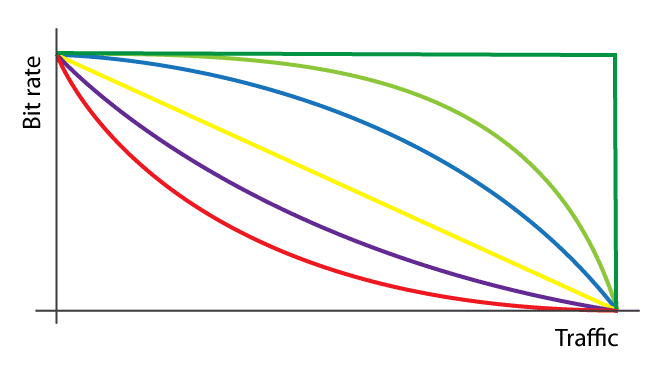
Allows you to define an automatic system of progressive degradation of download and upload data rate based on user-generated traffic. In practice with the increase of traffic generated in the defined time interval of hours, it decreases the data rate until it arrives to the minimum. It is also possible to define a daily time interval in which you can enable this feature (e.g. Enable from 08:00 am to 08:00 pm).
Warning! The speed modulation is not performed in real-time but at the activation and deactivation times you have defined.
Manageable fields are:
|
Field |
Description |
|
Enables Data Rate modulation |
Type of algorithm to be applied to calculate the data rate degradation to reach the minimum data rate. Possible values are: disabled; very low degradation, low degradation; linear degradation; medium degradation; high degradation; minimum data rate at max traffic achievement.
Data rate degradation chart: green=very low degrad; blue=low degrad; yellow=linear degrad; magenta = medium degrad; red=high degrad; dark green =minimum data rate at max traffic achievement. |
|
Activate at (hour) |
Activates the control of the data rate degradation from this time of the day. |
|
Deactivate from hour |
Disables the control of the data rate degradation from this time of the day. If the hour defined on “Activate at hour” is the same as that defined on “Deactivate from hour”, the modulation is always active. At the scheduled hour, users will be disconnected automatically to make them log in again with the newly calculated data rate based on the generated traffic. |
|
Period of Time |
Type of period considered for the calculation. The possible options are: hours; current month. If you select the interval in hours, it displays the field “Time interval in hours” where you can define how many hours to consider for calculating the traffic generated by the user. If you select “Current month”, the traffic calculation considers the whole current month. |
|
Time Interval in Hours |
To calculate the degradation, it considers the traffic developed in the last defined hours. Displayed only if you set “Hours” in the “Period of time” field. |
|
Traffic Type |
Defines the type of traffic to be considered for the data rate modulation. The possible values are:
|
|
Maximum Download + Upload Traffic |
Maximum megabytes of traffic of download + upload for the calculation period of degradation. At the achievement, it will be set for the user the minimum data rate both of download and upload. Visible only if you have chosen “Total Download + Upload” in type of traffic. |
|
Maximum Download Traffic |
Megabytes of maximum download traffic for the period to calculate degradation. When maximum limit is reached, it will set the minimum download data rate to the user. Visible only if you have chosen “Separate download and upload” or “Only download” in type of traffic. |
|
Maximum Upload Traffic |
Megabytes of maximum unload traffic for the period to calculate degradation. When maximum limit is reached, it will set the minimum upload data rate to the user. Visible only if you have chosen “Separate download and upload” or “Only upload” in type of traffic. |
|
Minimum Download Bit Rate |
Minimum download data rate in bit defined for the user when he reaches the maximum traffic in the calculation period of the degradation. |
|
Minimum Upload Bit Rate |
Minimum upload data rate in bit defined for the user when he reaches the maximum traffic in the calculation period of the degradation |
|
Ignore Traffic |
Ignores the bandwidth usage when the modulation is not active. In other words, it does not consider the traffic produced by the user in the consumption counts if the modulation is not active. |
This session allows you to define custom radius attributes to use for the authentication phase.
The number of manageble attributes is dynamic. To add an attribute, press the “Add Attribute” button and then choose the type of attribute and associate a value.
The manageble fields are:
|
Field |
Description |
|
Attribute X |
It allows choosing the attribute name from a preloaded list and defining, on the right, the corresponding value. The value must be compliant to the attribute type. |
This session allows you to define custom radius attributes to use for the response phase to the gateway, post authentication.
As for the “Check”, the number of manageble attributes is dynamic. To add an attribute, press the “Add Attribute” button and then choose the type of attribute and associate a value.
The manageble fields are:
|
Field |
Description |
|
Attribute X |
It allows choosing the attribute name from a preloaded list and defining, on the right, the corresponding value. The value must be compliant to the attribute type. |